
For parents and caregivers · 3/6
Reading the panel: Home, where to help and the exam plan
How the family panel is organized: the Home screen, the ten sections with their adult name and their game name, and what to look at daily.
6 min read

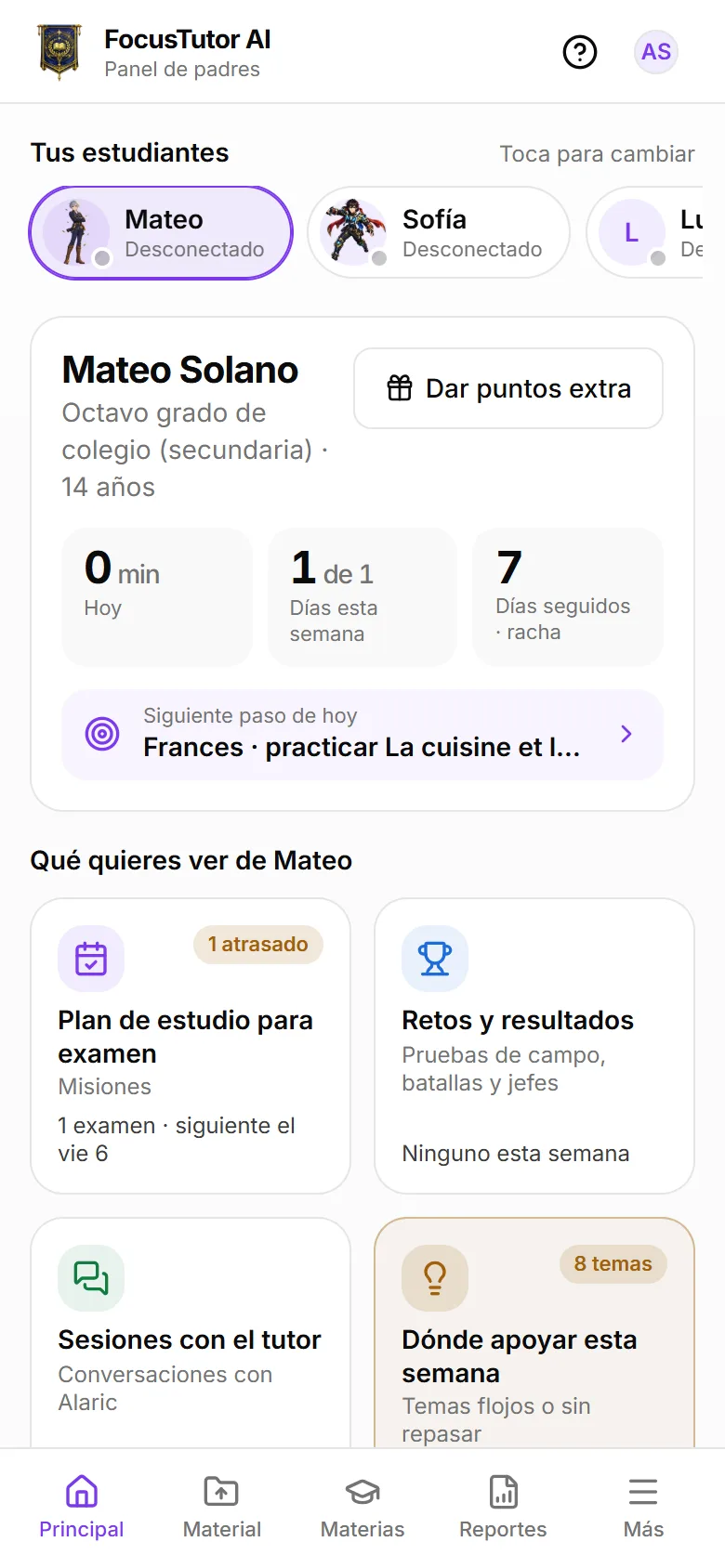
The panel opens on “Home”, which answers a single question: who is it and how is today going? At the top is “Your students”, one chip per child that says whether they are studying right now. Tapping a chip switches the whole panel to that student, and the choice is remembered in Material, Subjects, Reports and Settings too.
Below it there is one status card with three figures: minutes of study today, days with study this week and days in a row. Tutor sessions and challenges count the same. At the foot of the card, “Today's next step” says what's due according to their exam plan. It is the only thing you need to check daily.
Ten sections, with their adult name and their game name
Below the status card there are ten big buttons. Each carries a live figure (how many challenges this week, whether the plan is on track, how many topics are worth reviewing) so you know whether it's worth opening. Whatever needs your attention is marked in amber.
Your child lives the app as a game, with missions, battles, final bosses and XP. The panel uses adult words and keeps the game name in grey underneath, so you recognize what they tell you at home:
- 1Exam study plan · Missions: each exam split into short steps, and how it's going.
- 2Challenges and results · Field tests, battles and final bosses: challenges done and pending, filterable by size. A 5-question challenge is a “Field test”, a 10-question one a “Battle” and a 15-question one a “Final boss”.
- 3Sessions with the tutor · Conversations with Alaric: the summary of each session and the full conversation.
- 4Where to help this week: weak or unreviewed topics, and safety alerts.
- 5Practice by topic · Clear the Mist: short 3-question rounds per topic.
- 6Attention and breaks · Focus: their attention compared with their own starting point, and their breaks.
- 7This week's goals · This week's contract: the 2 or 3 goals they accepted at the start of the week.
- 8Chores with a reward · Challenges with points (XP): chores you set for them in exchange for points.
- 9Home rewards · Reward shop: real-life rewards they redeem with their points.
- 10Profile and learning style · Hero, level and rank: their character in the game and how they learn best.
On a phone and on a computer
On a phone, each button opens its own screen, with “‹” at the top to go back to Home. At the bottom there's a fixed bar with Home, Material, Subjects, Reports and “More”, which opens the rest of the menu (Billing, Settings and Help).
On a computer, Home is a board you take in at a glance: the students as tabs in the top bar, the chosen student's status in one strip, and the sections as cards with two or three figures each. Tapping a card opens its detail in a side panel without leaving the board; “Open as page” takes it to its own screen.
“Give bonus points” (XP in the game) sits on the student's status card, next to their name.
“Where to help this week”
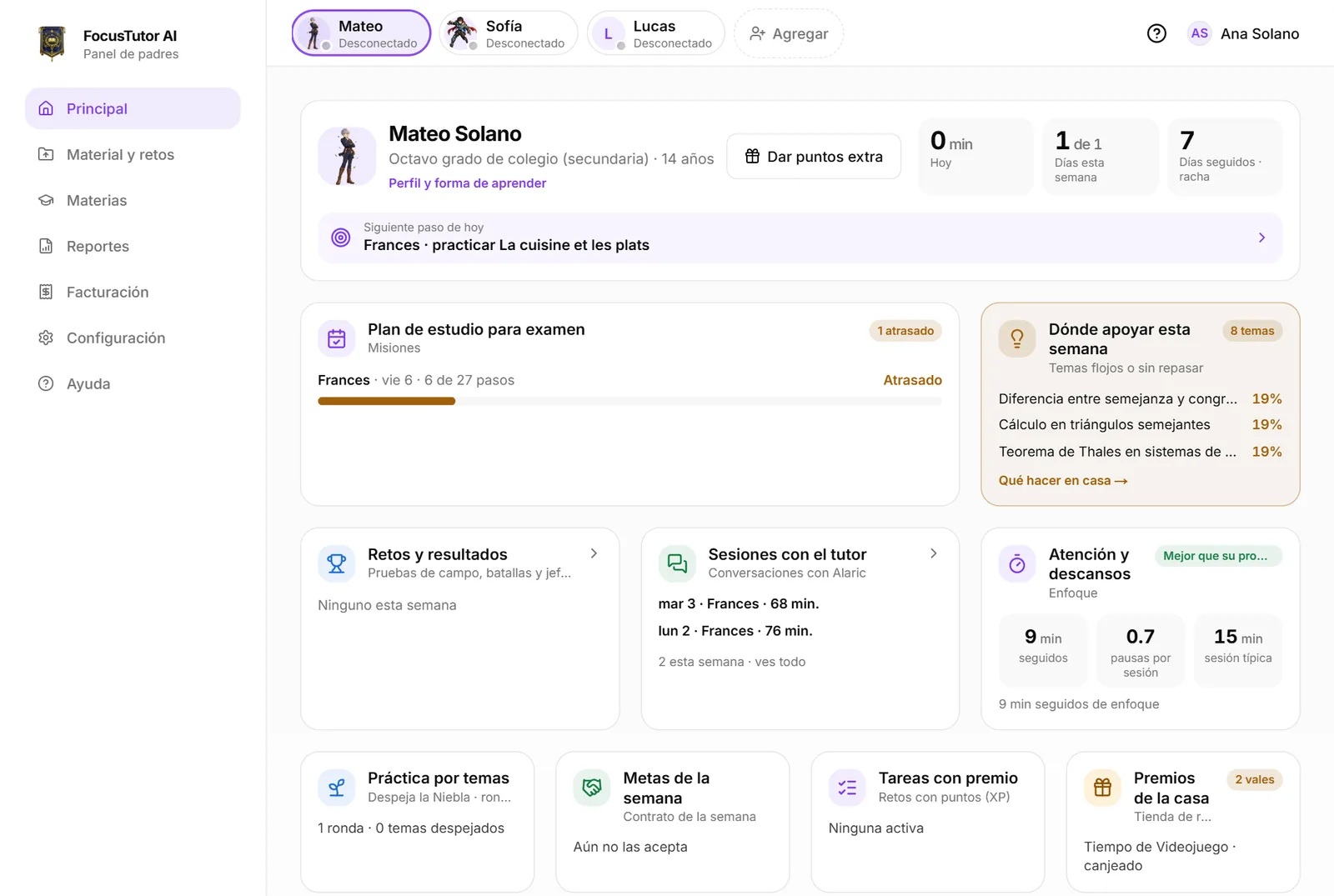
Lists the topics that would benefit most from a short review with you or with Alaric: the ones that went wrong and the ones not seen in a while. The percentage is current mastery, which fades over time without review.
The most useful thing to do with this list is not to explain but to ask: have them explain the topic to you in two minutes as if you were the student. Where they get stuck is the gap.
Safety alerts, if any, come first on this same screen, and below the topics you see how their subjects are going and their breaks in recent sessions.
The exam study plan and the route
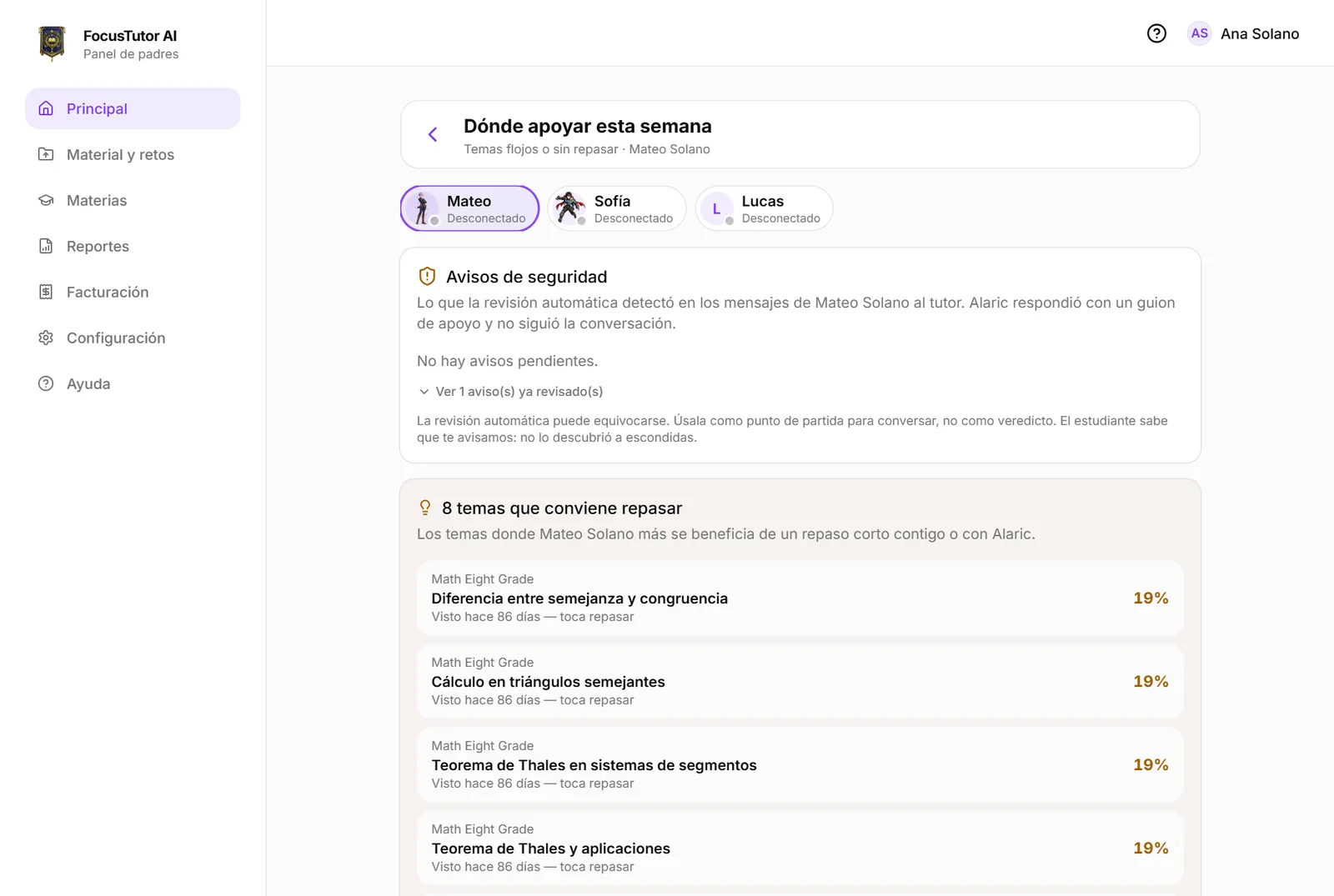
Inside “Exam study plan” is “This week: planned vs done”, which answers “did what was planned get done?”. First, the daily goal day by day (green: met; amber: studied without reaching it; grey: no study). Then the weekly contract if they accepted it, and one line per exam.
Below sits “Route to the exam”: for each exam, how many steps are done out of the total, how many of this week's they did, and the next step. “On track” means what's left fits in the days remaining. If it says “re-planned to make it”, the route moved steps because of days without study, topics already mastered or rushed answers; the reason shows in brackets. It's a fact about the route, not a fault of your child.
If an exam has no route yet, a “Create a route for …” button appears. The same summary comes in the weekly e-mail.
Attention and breaks
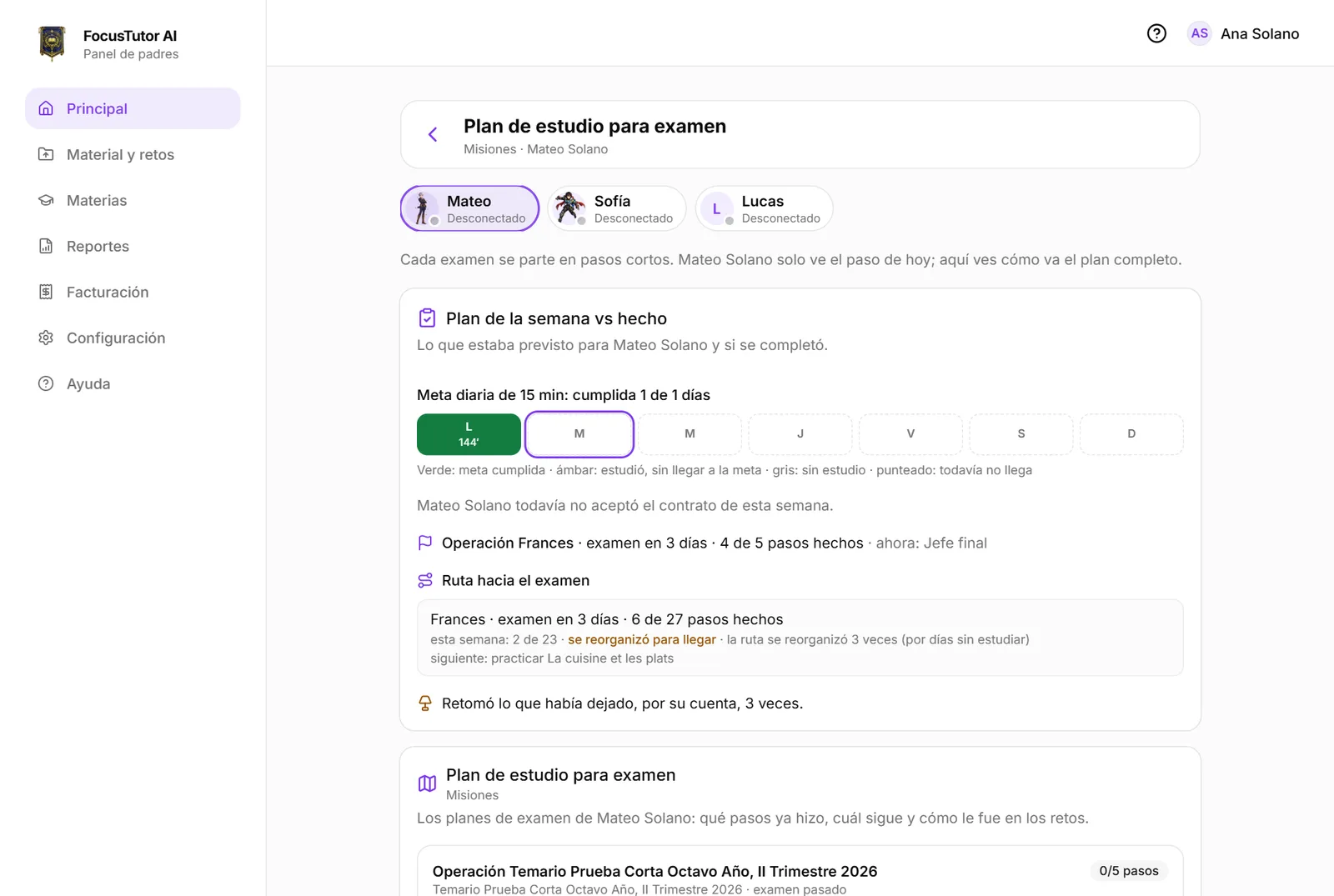
Here you see this week's attention compared with their first two weeks, never with other children: how many minutes they last before drifting, how often they come back on their own and whether they rush answers. Once there's enough data, it suggests one idea for home and later tells you whether it worked.
Below, their breaks and typical session length. Breaks are part of the method, not a failure: what matters is that they come back.
Ready to try it?
The free plan includes sessions with Alaric, challenges and the family panel. No card needed.