
For parents and caregivers · 2/6
Upload material and prepare an exam
PDFs, photos of notes, text and YouTube videos as study material, and how an exam becomes a route of short steps that re-plans itself.
5 min read

Alaric explains better with the real school material in front of him. Everything you upload is tied to a student and a subject, and from there come the sessions, the challenges and the topic map.
What you can upload
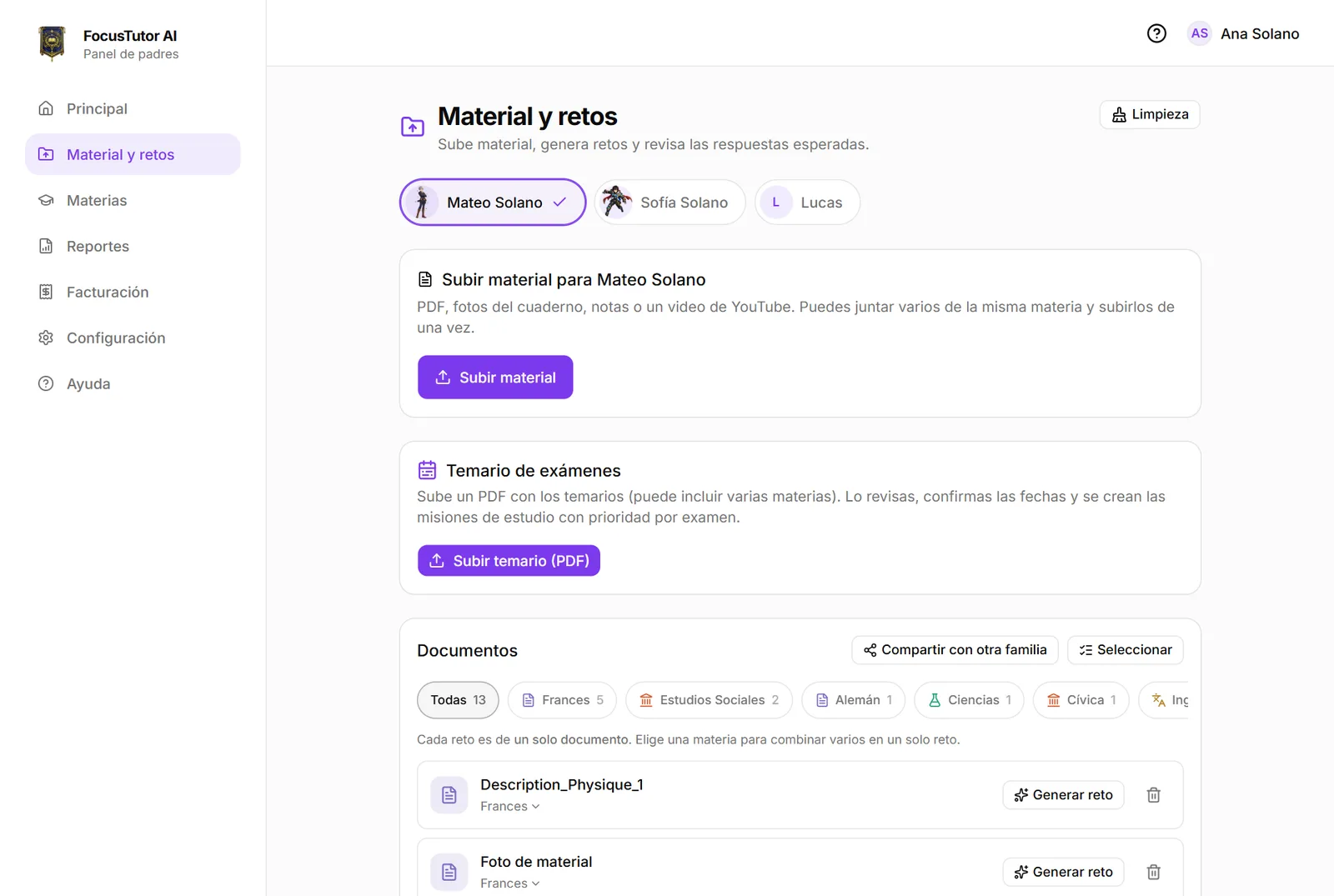
In “Material”, the “Upload material” button opens a two-step assistant. First you pick the subject, once. Then you add everything for that subject to a list, mixing kinds: a PDF, notebook photos, some notes and a video. Nothing uploads until you tap “Upload N items for …”, and before you tap it you see how many materials your plan has left this month.
If you close the assistant without uploading, the list stays as it was. Any item can be removed with its ✕. Each item counts as one material of the monthly quota.
- 1PDF: notes, syllabi, chapters. Read in full, even scanned, up to a page limit.
- 2Photos: the notebook or the board, up to 10 photos in one material. The app transcribes the text.
- 3Notes: text you paste or type directly.
- 4Video: a YouTube class video; the transcript is used, the video is not shown.
While it uploads
When you tap the button, the assistant closes and a card shows each item with its state: waiting, uploading or uploaded. They go up one after another. If one fails (a private video, for example), the rest carry on and the failed one keeps a “Retry” button.
When it's done, the document list jumps to that subject and the new items are marked “NEW” while they get ready for the tutor, which takes about a minute. “Upload more material” reopens the assistant with the same subject already picked.
Subjects and study language
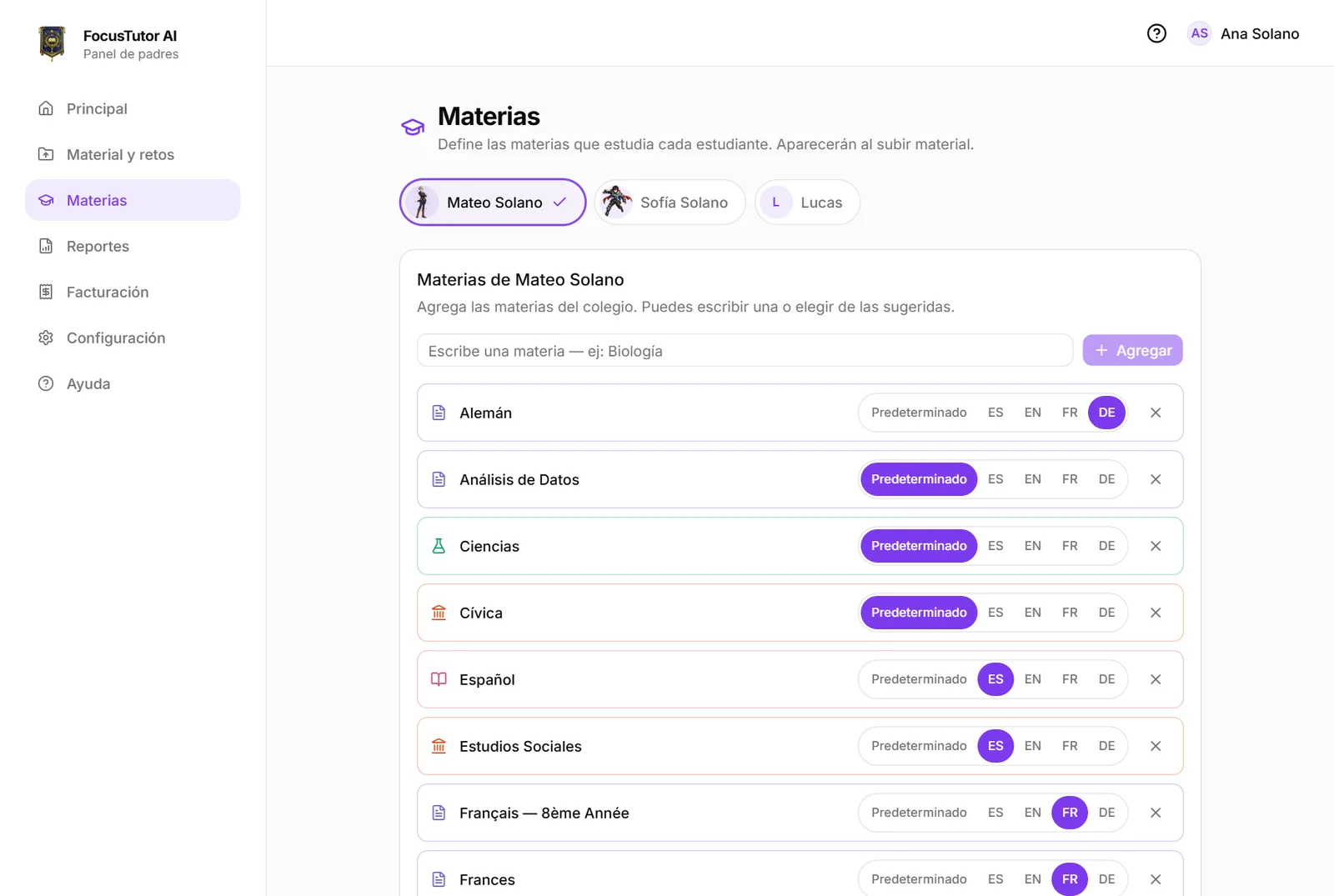
In “Subjects” you organize each student's courses and decide in which language each is studied. A student can have the interface in Spanish and study English or French in the subject's language.
Preparing an exam: the syllabus assistant
When the school sends an exam syllabus, upload it and use the assistant: it extracts the subject, the date and the topics, shows them for you to review, and on confirmation creates a mission for the student with concrete steps: study, challenge, review and final challenge, spread out until the date.
Then, on your panel, “Exam study plan” (in your child's game it's called “Missions”) tells you which steps got done, which is next and how many days are left. If they fall behind, its button on Home turns amber.
If the material already has detected weeks or units, there is a shortcut: in that PDF's “Generate challenge”, tick the units that are in the exam, set the date and press “Prepare exam”. It does the same as the assistant without uploading another file.
- 1Upload the syllabus as a PDF or photo.
- 2Open the assistant and review subject, date and topic list.
- 3Confirm. The mission appears on the student's Home as “After this”, and the route to the exam builds itself within seconds.
The route to the exam
When you confirm an exam, FocusTutor AI builds a route: every topic becomes steps of 3 to 8 minutes (learn it with Alaric, practice it in a round of three questions, review it two and five days later) plus a mock exam the day before. Steps are spread day by day using the daily goal you set; if the exam is very close, the daily load goes up and shows it, it doesn't hide it.
The student doesn't see a list of 30 tasks: their Home shows only today's step, with why and how long it takes. What they already master is skipped; what comes out weak gets a short explanation before moving on.
If they skip a day, the route builds no debt: it spreads what's pending over the days left, drops the least needed reviews first and, when they come back, starts with the smallest step. If an exam has no route (for example, one created earlier), the panel shows “Create a route” to build it.
Frequently asked questions
- How much material can I upload?
- It depends on the plan: from 3 materials a month on the free plan to 90 on the Family plan. The quota is shown in Billing and renews monthly.
- Does anyone else see the material?
- No. It is stored privately and only your family and the tutor read it. It is sent to the AI to generate explanations and challenges, without being used to train models.
Ready to try it?
The free plan includes sessions with Alaric, challenges and the family panel. No card needed.